Tampilkan postingan dengan label movies. Tampilkan semua postingan

iLivid Download Manager Download free movies with iLivid

Minggu, 16 Maret 2014

0 komentar
iLivid is a download manager with a bunch of powerful features that makes it the fastest and easiest way to download hosted files. Only with iLivid download manager you can instantly watch video files from One-Click file sharing hosts like Rapidshare.com, Megaupload.com, Hotfile.com & many more, without waiting until the download completes.

iLivid not only supports users with a premium account but also users who dont pay. iLivid download manager includes a link checker and a link grabber, and bundles vlc player for instant playback of video links.
And of course, iLivid download manager is absolutely FREE!
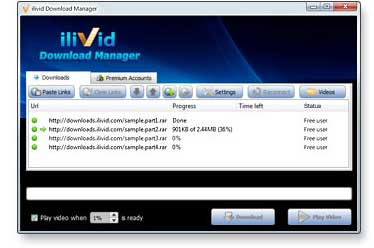
iLivid Download Manager - Download free movies with iLivid
iLivid Download Manager Key Features :
  • Instant Play! - Start watching your video within seconds after download starts! Only with iLivid downloader.
  • Power Download - The ultimate downloader for Rapidshare, Megaupload, FileServe, Hotfile and more.
  • Smart and Simple - Links availability checker, preview video links while downloading and many more powerful features.
Free iLivid Download Manager from link below :
web developer
Read More..

How to Sync SD HD Videos and Movies to iPhone iPod iPad with iTunes

Kamis, 30 Januari 2014

0 komentar
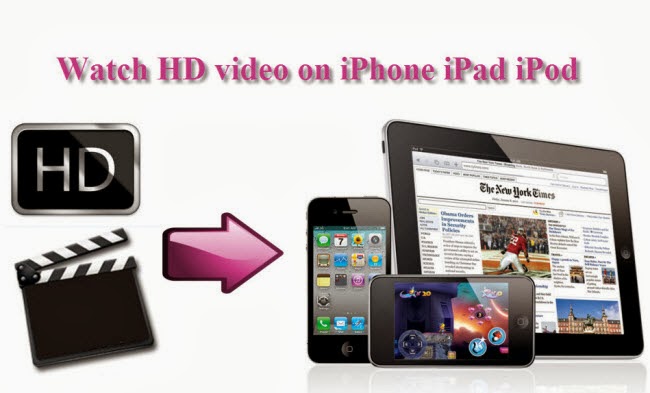
Do you have some HD videos in MKV/AVI/WMV/MTS/MXF/MPG/Tivo/FLV format? You may downloaded then from YouTube, forum; be emailed from friends; or shot several videos by yourself. It’s really a good idea to put these videos onto your iPhone/iPad/iPod Touch so that you can watch or share them everywhere.

We all know iTunes would transfer audio files to AC3/AAC automatically when you drag and drop them directly; however, not all the videos are supported by iTunes. To sync MKV/AVI/WMV/MTS/MXF/MPG/Tivo/FLV to iTunes for iPhone/iPad/iPod, the most recommended solution is to convert them to MPEG-4/H.264 MP4, the most compatible format to playback on iPhone/iPad/iPod.
watch hd videos on iphone ipad ipod
 
So here comes the problem: how do I transfer various HD videos and movies to iPad/iPod/iPhone with iTunes?

There’re several iOS Video Converters on the market; we really took some time to test and final combined out the best one with simple workflow, reliable video quality and rich functionality – the iPhone/iPod/iPad Video Converterfrom Pavtube Studio.

This is an all-in-one Video to iPad/iPhone/iPod Converter which integrates many presets for every model of your iDevices, fully support iPhone 5C/5S/5/4/4S/3GS, iPod Touch 5 and iPad 4/3/2/1 as well as iPad Mini.

At the time of writing, we found it’s on 20% OFF and it’s also works on Blu-ray/DVDs; that is to say, watching Blu-ray movie on iPad/iPhone/iPod. Bravo! It seems really great, don’t miss it!

Or you can download a free trial version here:


Tutorial of converting HD videos to MP4 for iPad/iPhone/iPod

Step 1. Import videos to iOS Video Converter Ultimate.

Get this program installed, click the top left two icons to import files into it. We checked and found the first icon seems to be designed for importing Blu-ray and DVD; so if you want to input pure videos, click the second one.

iphone ipod ipad video converter

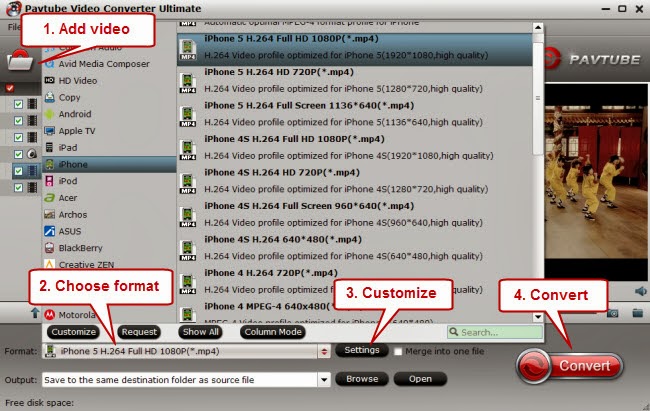
Step 2. Choose MP4 as target format.

Click the drop-down list on the bottom, you will find various presets for different devices. No worries about choosing which one; you can submit your device model in the search box (on the bottom of the format list) to quick locate proper presets.

Step 3. Edit your video before conversion.(Optional)

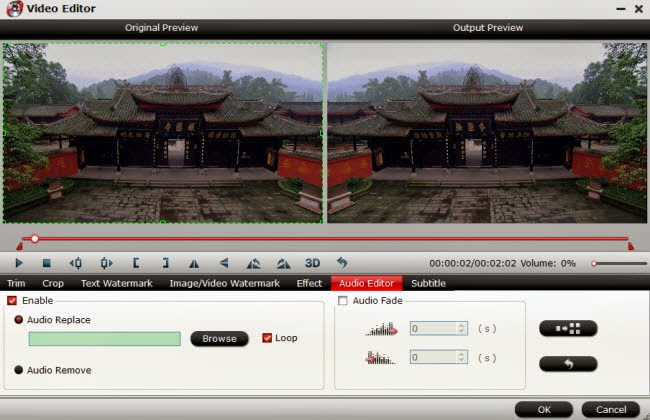
Now back to the main interface, click the pencil-like edit icon on the top to open Video Editor as below:

editing videos for ios devices

In this Video Editor, you can trim, crop, add watermark/subtitles or edit audio of the source files.

You can also click “Settings” in the main interface to edit video size, bitrate, frame rate or sample rate all at your nees.

Step 4. Start conversion.

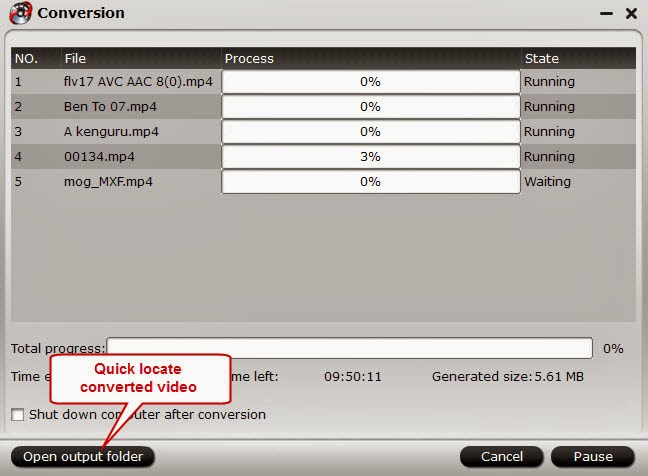
Click the red “Convert” to start converting MKV/AVI/WMV/MTS/MXF/MPG/Tivo/FLV or Blu-ray/DVD to your iPad/iPhone/iPod. It allows running up to 4 tasks simultaneously, the rest will be queued up. After the conversion, click “Open output folder” to locate converted video quickly.

convert videos to iphone ipod ipad

TADA! Now we get the videos ready for transferring to iPad/iPhone/iPod, follow this link to learn how to do the transferring via iTunes:
     
Read More..

How to make iTunes movies playable on ASUS Fonepad 7

Senin, 27 Januari 2014

0 komentar
Question:
"Hello, I want to convert M4V files on my iTunes so i can transfer them to my Asus Fonepad 7 which I just got today as birthday gift. Any program can achieve this task? "
“I have a movie that I bought on iTunes back in 2010. How do I put it on my Fonepad (7 inch)? The format wont work, and iTunes wont allow me to convert it?”

Answer:
“iTunes movies are to be used only on Apple devices officially. You cant watch iTunes movies on Android tablets, without removing the DRM protection. And if you want to watch them in Fonepad 7, there’s another work you need to do: converting to another format with proper video size. In your case, MP4 is most widely used.”

As we know, M4V videos purchased from iTunes store are protected by Apple’s DRM and can’t be transferred or played on non-Apple products. Well, in the case above, Asus Fonepad 7 is no exception. Moreover, as the answer mentioned, M4V is not a format that Fonepad 7 appreciates.

So if you really want to watch iTunes DRM video on Asus Fonepad 7, you need to go through two steps: 1. Remove the DRM protection, 2. Convert M4V to Fonepad supported video format: MP4.

To accomplish this goal, Pavtube iTunes to Fonepad 7 Converter is highly recommended for its easy-to-use interface, straight workflow and reliable video quality. It can remove the DRM protection from iTunes downloaded video, and transfer it to various video formats including MP4 profiles for Fonepad 7.

Now just download this software and follow the tips below to make your iTunes movies playable on ASUS Fonepad 7.


A command window will pop up during the installation to install specific audio driver, do not shut down and let it running until the installation completed.


How to remove DRM and record iTunes M4V video to Asus Fonepad 7? 

Step 1. Add video and choose target format.

Drag and drop your videos to it directly, or you can click icon to import them as below.


Let’s click the drop-down-list besides “Format” and choose “Common Video> H.264 Video(*.mp4)”. Or move to “ASUS” column and choose “Asus Fonepad Video (*.mp4)” as output format for your Fonepad 7.


Step 2. Customize target video specs.


Click “Settings” to enter Profile Settings window, you can find settings for video size, codec, bitrate and frame rate. For Fonepad 7 playback, you are suggested to set the Size to 1280*800 or 1280*720; and bitrate will be fine from 1500 to 2500 kb/s.

Step 3. Start conversion.

Now click the big red icon to start converting iTunes M4V videos to Asus Fonepad 7 in batch; this converter will activate your media player automatically and start to play this video. The player windows cannot be removed or closed.

In the meanwhile, it will start to record this video in MP4 real-time. The conversion time is equal to the video length itself; you can do other tasks during the converting the process.

Note: the system volume could turn off temporally during this period; no worries, do not touch it to get perfect DRM removed video.

After the conversion, click “Open output folder” to quick locate the converted video.


Tips:

1. The DRM removing process may mislead your anti-virus software to falsely report virus/worm. Please ignore the report to keep on ripping.

2. This product cannot convert unplayable video (damaged, unauthorized, etc).
  
Now, connect your Fonepad 7 to computer with USB, and transfer the recorded iTunes videos to Fonepad 7 for watching. (Note: To change your devices USB connection options, touch Settings > Device > Storage > Menu > USB computer connection.)
  
Related Articles:
   
Read More..

Copyright © 2010 Download PC Software | Powered By Blogger