Tampilkan postingan dengan label on. Tampilkan semua postingan

How to Add Blu ray ISO files to iPhone 5S iPhone 5C with iTunes on Mac OS X

Kamis, 20 Februari 2014

0 komentar
In this post we offer an easy way to add your Blu-ray ISO image files from Mac to iPhone 5S/5C with iTunes for watching anywhere and anytime.

Have you got your new iPhone 5S or iPhone 5C yet? Once Apple unveiled the new generation of iPhone 5S and 5C, Apple fans have started ordering their new iPhone 5S/5C to experience the fresh Apple iOS 7 and much faster A6/A7 64-bit processor. As for movie lovers, they can enjoy better video and audio playback on the new iPhone 5S/5C thanks to Apple’s 4-inch, 1,136 x 640 Retina display with a pixel density of 326 pixels per inch, a brightness rating of 500 nits and an 800:1 contrast ratio. While, like most smartphones on the market, iPhone 5S/5C cannot handle Blu-ray ISO image files as well. To watch Blu-ray ISO file on iPhone 5S/5C, you’d better convert your Blu-ray ISO files to iPhone 5S/5C compatible format with a Top Mac Blu-ray ISO to iPhone 5S/5C Ripper.


iPhone 5S/5C supported format:
  • Video Format: .m4v, .mp4, .mov, MPEG-4, H.264, M-JPEG
  • Audio Format: AAC, Protected AAC, HE-AAC, MP3, AAX, AAX+m, Apple Lossless AIFF, WAV

Part One. How to convert Blu-ray ISO image files to iPhone 5S/5C on Mac OS X?

Step 1. Get Top Blu-ray to iPhone 5S/5C Converter and Load Blu-ray ISO image file.

Download, install and launch the Best Blu-ray ISO to iPhone 5S/5C Converter on your Mac.

             
(Download the DMG file for Mac OS X 10.5 Leopard users.)

Click the “Load IFO/ISO” button to import your source Blu-ray ISO image file.

blu-ray to iphone 5s/5c ripper for mac

Step 2. Choose audio track and subtitles for output.

On Blu-ray ISO to iPhone 5S/5C Ripper main UI, set your wanted subtitles and audio track from the drop-down box of “Subtitles” and “Audio” tab.

Step 3. Select iPhone 5S/5C suitable profile and adjust profile presets (optional).

Pavtube Blu-ray Ripper for Mac offers users dozens of profiles under “Format” menu so you would always get an optimized profile for your portable device.

convert blu-ray iso to iphone 5s/5c

In order to convert Blu-ray ISO to the new iPhone 5S/5C with 1080p image quality, you are suggested to choose iPhone 5 H.264 Full HD 1080P(*.mp4)” format for output.

Tips: If you’d prefer higher quality, click on “Settings” and set video bitrate to 2000kbps or above, this will bring better image quality and also bigger file size.

Step 4. Start ripping Blu-ray ISO to iPhone 5S/5C.

Now you are ready to hit the “Convert” icon to start ripping. After it completes, click the “Open” button on program interface to locate the created MP4 file, and transfer the converted Blu-ray ISO image file to your new iPhone 5S/5C with iTunes.

Part Two. Manually Sync Movies to iPhone 5S/5C via iTunes 11

To put videos, music and photos to iPhone 5c, iTunes 11 is a must. You can download iTunes 11 and follow the steps below to put Video, DVD, Blu-ray movie to iPhone 5c. If you use manual syncing, you can sync items from more than one iTunes library to your iPhone 5c. Follow the instructions below to manually sync movies to iPhone 5c in iTunes 11.

1. Open iTunes 11, and press “File” -> “Add File to Library” to add movies to iTunes Library. Or just switch to Movie library, and drag the file to iTunes. (How to add local contents on your computer to iTunes)


2. Connect iPhone 5S/5C with your Mac using the cable that came with your device.

3. Click the Summary button and select “Manually manage music and videos” (below Options).


4. Click the On This Device (your iPhone 5S/5C name) button.

5. Click Add To on the right side of the iTunes window.

6. Switch to Movies Drag items from the left side of the iTunes window to the pane on the right.


In this way you can sync Blu-ray ISO image files to iPhone 5S/5C as you like. The Pavtube Blu-ray Ripper for Mac supports latest released Blu-ray movies and rip Blu-ray/Blu-ray ISO to various video formats and codecs (MKV, AVI, MP4, WMV, M2TS, TS, Tivo, VOB, MPG, etc.) for playing, editing, burning, sharing, etc.

Tips: For Windows users, please download and try Blu-ray to iPhone 5S/5C Ripper, the steps can refer to here:Watch Blu-ray movies on iPhone 5S/5C with best video quality

Related Articles:
   
Read More..

Best Blu ray Ripper Mavericks for Ripping 3D Blu ray to SBS Top Bottom Anaglyph 3D format on Mac Mavericks

Sabtu, 01 Februari 2014

0 komentar
As we know, 3D movies have joined peoples daily life for a couple of years. The number of 3D consumers is increasing constantly, and 3D videos are becoming the most sought-after things. Instead of going to the cinema, many people prefer to enjoy their 3D blu-ray movies on TV to spend their weekends. 
"Im trying to find out if I can rip my 3D blu-rays to my HDD and still get 3D playback on them to my TV via my HDMI connection. If so, how exactly would I go about burning them (if there is a certain way), and is there any special software or anything Ill need to play the blu-rays back through to do this? I am using Mac OS X 10.9 Mavericks."
If you have the same confusion as the customer above, youve read the correct article. The answer is absolutely yes and the only software you need is Pavtube 3D Blu-ray Ripper for Mac (Currently on Sale: 30% off for Christmas Specials). Pavtube Studio has updated its Blu-ray ripping software to support 3D Blu-ray Discs. This new feature enables users to rip and convert 3D Blu-ray movies to Top-Bottom 3D, Side-by-Side 3D and Anaglyph 3D.

The equivalent Windows version is 3D Blu-ray Ripper

How to rip 3D Blu-rays to Top-Bottom, Side-by-Side and Anaglyph 3D MP4/MKV/MOV/AVI/WMV on Mac 10.9 Mavericks? 

1. Add 3D Blu-ray source file to the program.

Download and install the latest 3D Blu-ray Converter onto your computer. Launch it and click "Add Video" icon to load 3D blu-ray files.

3d blu-ray ripper for mac mavericks

2. Set 3D format as output

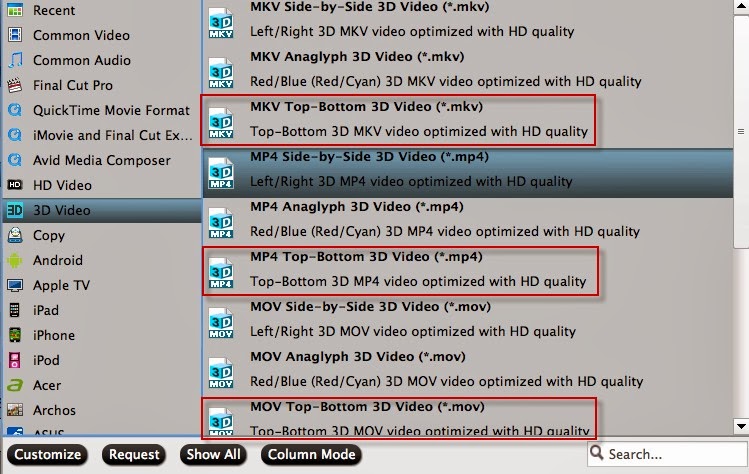
Click "Format" bar and move mouse to "3D Video" column, you can choose either "MKV Top-bottom 3D Video (*.mkv)" or "MP4 Top-bottom 3D Video (*.mp4)" or "MOV Top-Bottom 3D Video (*.mov)" as output format. If you want to output Anaglyph 3D or Side-by-Side 3D, you could choose it according to your specific need.

rip 3d blu-ray to SBS/Top-Bottom/Anaglyph 3D format

Tip: If you want to output the format with multiple audio tracks and subtitle sincluded, Pavtube ByteCopy for Mac is your best choice to meet your demand. (Guide: Whats the difference between profiles under Lossless/encoded Multi-Track and HD Media Player in ByteCopy?)

3. Start rip 3D Blu-ray to MP4/MKV/MOV Top-Bottom 3D

When everything is OK, just press the "Convert" button to start the conversion. It will not take much time. Just wait for the conversion process to get done. Once the conversion finished, you are able to get 3D MP4/MKV/MOV files via clicking "Open" button.

The image below is the top-bottom effect when viewing without putting on glass.


When play the MKV/MP4/MOV 3D Blu-ray on your TV, You may find it comes up in two screen, just hit the 3D button on your TV, and it will pop up a window saying put on your glasses, choose "OK". Another window appears showing your 3D choice: top-buttom.

Put on your 3D glasses, and then just enjoy 3D Movies!

You May Also Like:
Read More..

How to make iTunes movies playable on ASUS Fonepad 7

Senin, 27 Januari 2014

0 komentar
Question:
"Hello, I want to convert M4V files on my iTunes so i can transfer them to my Asus Fonepad 7 which I just got today as birthday gift. Any program can achieve this task? "
“I have a movie that I bought on iTunes back in 2010. How do I put it on my Fonepad (7 inch)? The format wont work, and iTunes wont allow me to convert it?”

Answer:
“iTunes movies are to be used only on Apple devices officially. You cant watch iTunes movies on Android tablets, without removing the DRM protection. And if you want to watch them in Fonepad 7, there’s another work you need to do: converting to another format with proper video size. In your case, MP4 is most widely used.”

As we know, M4V videos purchased from iTunes store are protected by Apple’s DRM and can’t be transferred or played on non-Apple products. Well, in the case above, Asus Fonepad 7 is no exception. Moreover, as the answer mentioned, M4V is not a format that Fonepad 7 appreciates.

So if you really want to watch iTunes DRM video on Asus Fonepad 7, you need to go through two steps: 1. Remove the DRM protection, 2. Convert M4V to Fonepad supported video format: MP4.

To accomplish this goal, Pavtube iTunes to Fonepad 7 Converter is highly recommended for its easy-to-use interface, straight workflow and reliable video quality. It can remove the DRM protection from iTunes downloaded video, and transfer it to various video formats including MP4 profiles for Fonepad 7.

Now just download this software and follow the tips below to make your iTunes movies playable on ASUS Fonepad 7.


A command window will pop up during the installation to install specific audio driver, do not shut down and let it running until the installation completed.


How to remove DRM and record iTunes M4V video to Asus Fonepad 7? 

Step 1. Add video and choose target format.

Drag and drop your videos to it directly, or you can click icon to import them as below.


Let’s click the drop-down-list besides “Format” and choose “Common Video> H.264 Video(*.mp4)”. Or move to “ASUS” column and choose “Asus Fonepad Video (*.mp4)” as output format for your Fonepad 7.


Step 2. Customize target video specs.


Click “Settings” to enter Profile Settings window, you can find settings for video size, codec, bitrate and frame rate. For Fonepad 7 playback, you are suggested to set the Size to 1280*800 or 1280*720; and bitrate will be fine from 1500 to 2500 kb/s.

Step 3. Start conversion.

Now click the big red icon to start converting iTunes M4V videos to Asus Fonepad 7 in batch; this converter will activate your media player automatically and start to play this video. The player windows cannot be removed or closed.

In the meanwhile, it will start to record this video in MP4 real-time. The conversion time is equal to the video length itself; you can do other tasks during the converting the process.

Note: the system volume could turn off temporally during this period; no worries, do not touch it to get perfect DRM removed video.

After the conversion, click “Open output folder” to quick locate the converted video.


Tips:

1. The DRM removing process may mislead your anti-virus software to falsely report virus/worm. Please ignore the report to keep on ripping.

2. This product cannot convert unplayable video (damaged, unauthorized, etc).
  
Now, connect your Fonepad 7 to computer with USB, and transfer the recorded iTunes videos to Fonepad 7 for watching. (Note: To change your devices USB connection options, touch Settings > Device > Storage > Menu > USB computer connection.)
  
Related Articles:
   
Read More..

Copyright © 2010 Download PC Software | Powered By Blogger